Как сканировать NFC-теги? Полное руководство для телефонов iPhone и Android
Вы когда-нибудь видели NFC-теги на вывесках на столиках в ресторанах, рекламные плакаты, или упаковка продукта, но не знаю, как ими пользоваться? На самом деле, сканировать метки NFC гораздо проще, чем вы думаете. Не требует сложной настройки; это так же просто, как использовать бесконтактные платежи.
В этой статье, мы поможем вам понять, как сканировать метки NFC, и научим использовать эту технологию для разблокировки интеллектуальных функций в вашей жизни..
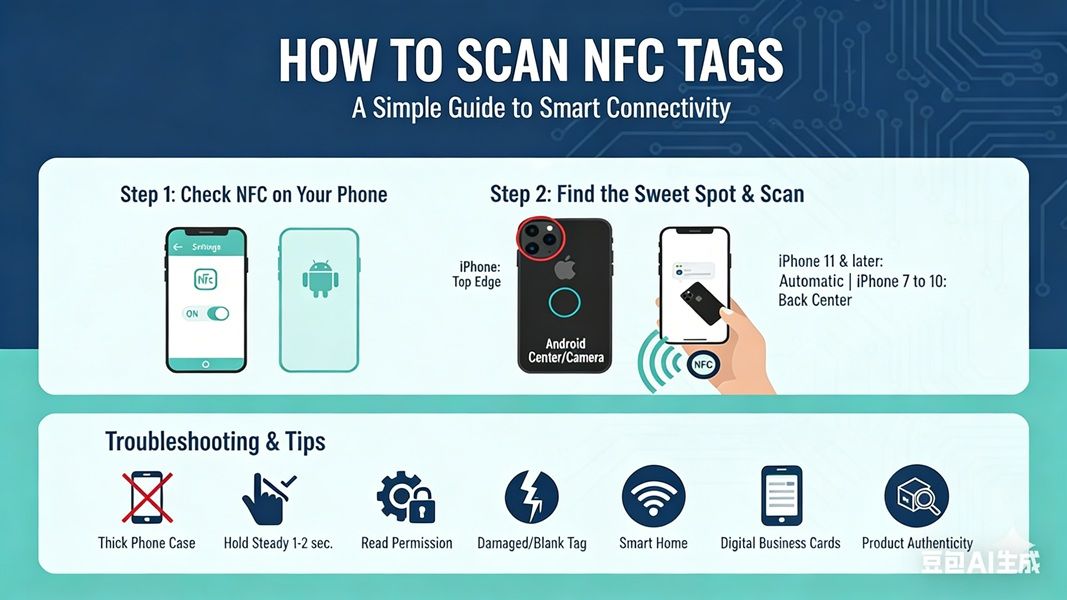
Шаг 1: Проверьте, поддерживает ли ваш телефон NFC
Самый средний и высокий класс смартфоны на рынке теперь есть встроенный NFC (Ближняя бесконтактная связь) функциональность.
- Пользователи Android: Перейти к “Настройки” > “Возможности подключения” или “Больше связей” и проверьте, есть ли переключатель NFC. Убедитесь, что он включен.
- пользователи iPhone: Все iPhone 7 и более поздние модели имеют встроенную функцию NFC.. айфон 11 и более поздние модели даже не нужно включать вручную; система автоматически распознает и просканирует метки.
Шаг 2: Определите место сканирования для вашего телефона
Это основная причина, по которой многие пользователи “не могу сканировать” теги. NFC-метки обычно размещаются на задней панели телефона., но расположение антенны варьируется в зависимости от модели телефона:
- айфон: Антенна обычно расположена рядом с камерой на верхнем крае телефона..
- Андроид: Расположение антенны зависит от модели., но обычно он расположен в центре задней части телефона или рядом с камерой.
Шаг 3: Начать сканирование
Разблокируйте экран телефона (убедитесь, что экран включен).
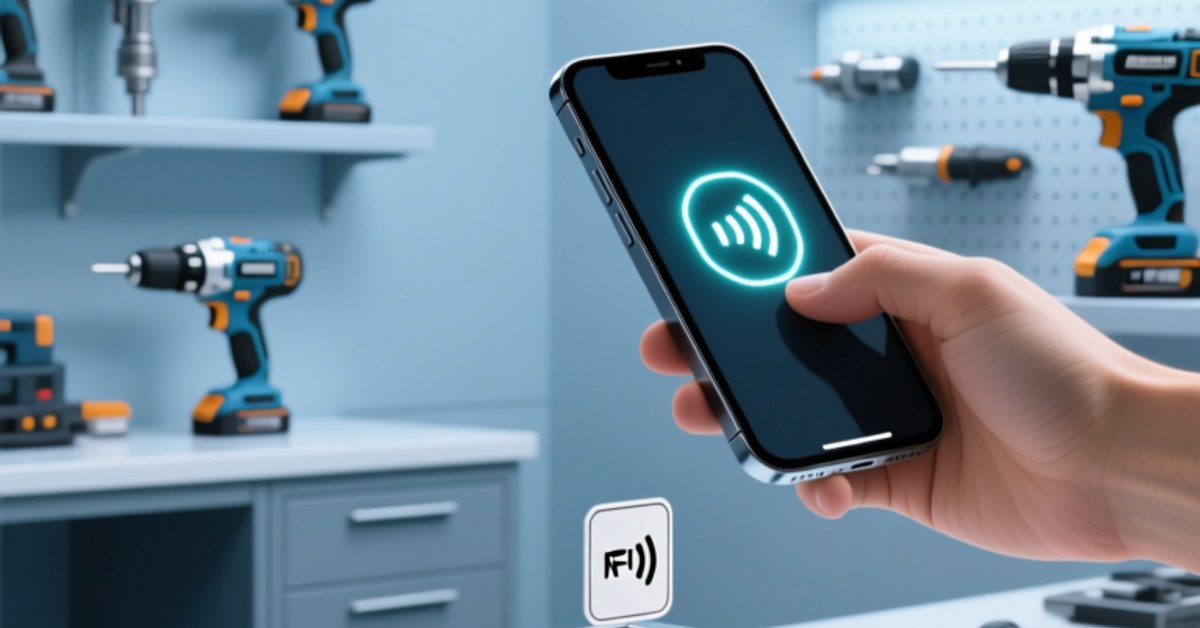
Поднесите заднюю часть телефона к метке NFC. (1-2 см на расстоянии).
Когда телефон распознает метку, вы почувствуете легкую вибрацию или услышите звук уведомления. Уведомление или веб-страница автоматически появится в верхней части экрана.; коснитесь его, чтобы продолжить.
Почему ваше сканирование не работает? (Поиск неисправностей)
Если после нескольких попыток вы по-прежнему не получили ответа, пожалуйста, проверьте следующее:
- Толстый чехол для телефона.: Металлические или очень толстые противоударные чехлы для телефонов могут блокировать сигналы NFC.. Попробуйте снять чехол с телефона и повторить попытку..
- Разрешение на чтение не включено: Некоторым телефонам Android требуется “Чтение тега NFC” функция, которая должна быть специально включена.
- Неправильная осанка: Держите телефон рядом с меткой, чтобы 1-2 секунды; не двигай его слишком быстро.
- Поврежденные или ненаписанные теги: Некоторые теги пусты или зашифрованы промышленным уровнем., которые не могут быть читабельны обычными мобильными телефонами..
Что можно делать с метками NFC после сканирования?
Сканирование тегов — это только начало; его истинная ценность заключается в “умное подключение.” С NFC-метками, ты можешь достичь:
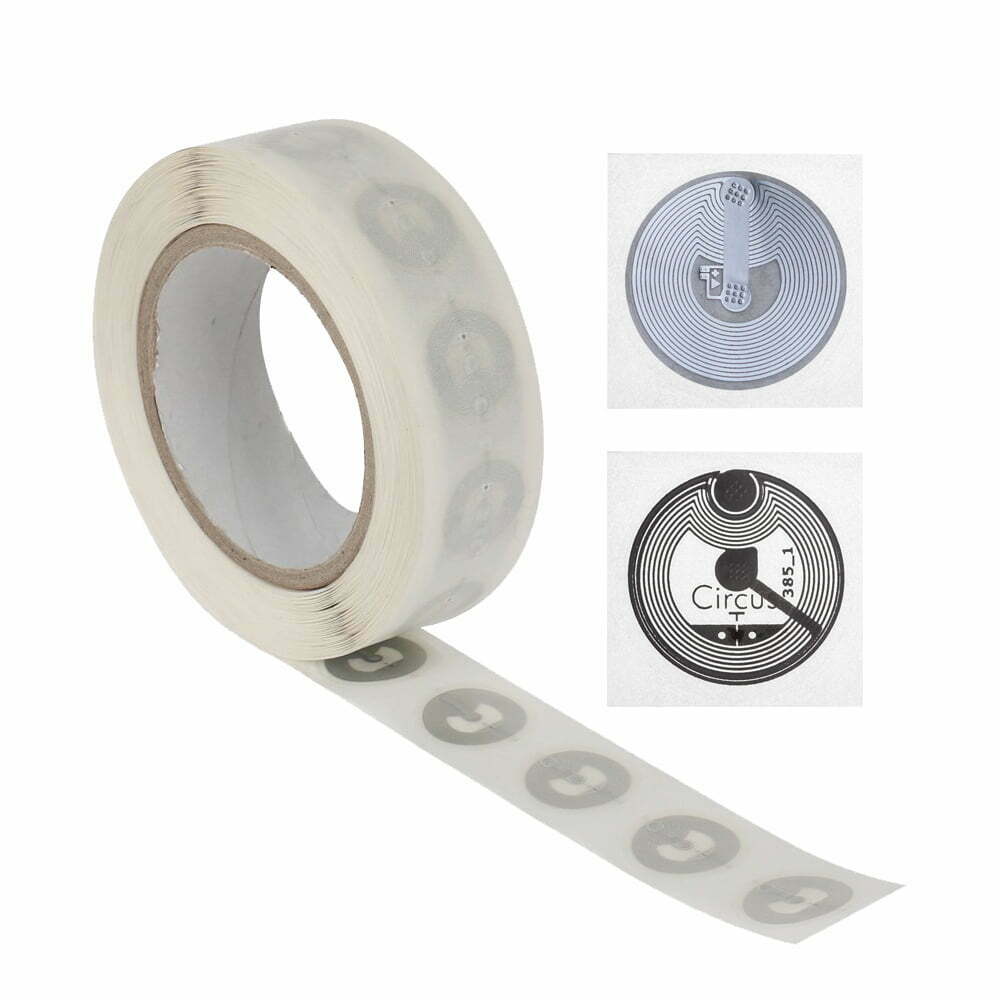
- Автоматизация умного дома: Повесьте бирку возле своей кровати; касание телефона автоматически выключит свет и активирует “Просьба не беспокоить” режим. Мы рекомендуем использовать высокочувствительный [Наклейка начального уровня NTAG213] для этих сценариев.
- Деловые сети: Больше никаких бумажных визиток. Вы можете написать свою контактную информацию в [Электронная визитка NFC.], и клиенты могут просто отсканировать его, чтобы автоматически сохранить ваш номер телефона., веб-сайт, и аккаунты в социальных сетях своим контактам.
- Проверка продукта на предмет подделки: Многие дорогие бренды используют чипы NFC для проверки подлинности продукции., гарантия того, что вы покупаете подлинную продукцию.
Краткое содержание
Сканирование меток NFC — чрезвычайно простой, но мощный навык.. Однажды освоенный, вы можете попрощаться с громоздкими QR-кодами и войти в более эффективный мир интеллектуальных подключений.
Готовы ли вы попробовать это сами??
Если вы хотите углубиться в технологию NFC, посетите наш [Страница выбора чипа NFC] выбрать подходящий вводный NFC-продукт для вашего бизнеса и начать создавать собственный умный триггер!
Для получения дополнительной информации,пожалуйста связаться с нами.