Sådan scannes NFC-tags? En komplet vejledning til iPhone og Android-telefoner
Har du nogensinde set NFC -tags på restaurantbordsskilte, reklameplakater, eller produktemballage, men ved ikke hvordan man bruger dem? Faktisk, scanning af NFC-tags er meget enklere, end du tror. Det kræver ikke kompliceret opsætning; det er så enkelt som at bruge kontaktløse betalinger.
I denne artikel, vi guider dig gennem at forstå, hvordan du scanner NFC-tags og lærer dig, hvordan du bruger denne teknologi til at låse op for smarte funktioner i dit liv.
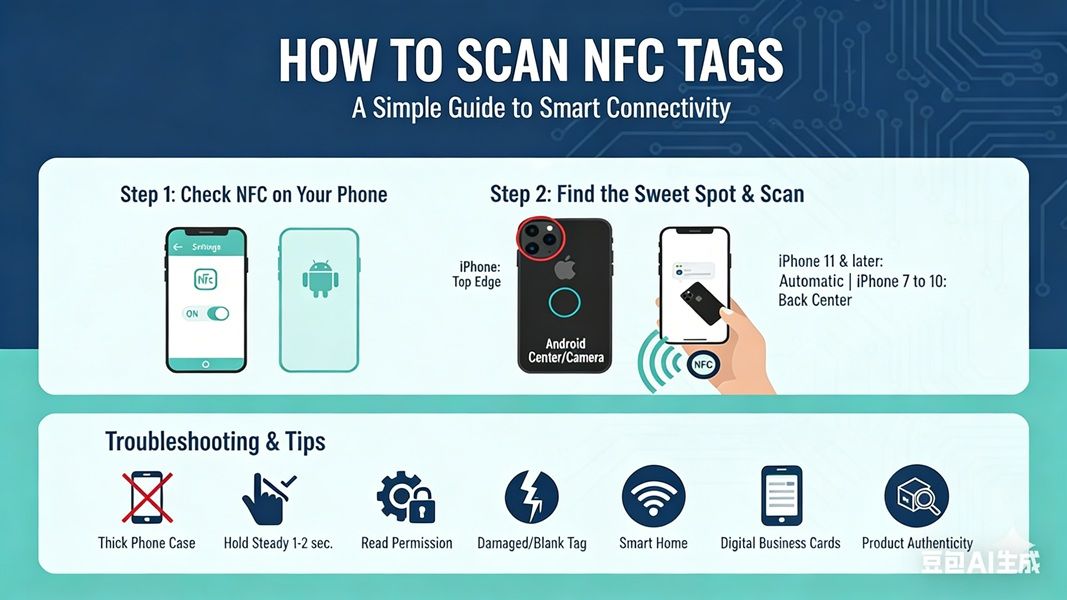
Trin 1: Tjek, om din telefon understøtter NFC
Mest mellem til høj ende Smartphones på markedet nu har indbygget NFC (Nærfeltskommunikation) funktionalitet.
- Android-brugere: Gå til “Indstillinger” > “Forbindelse” eller “Flere forbindelser” og kontroller, om der er en NFC-switch. Sørg for, at den er tændt.
- iPhone-brugere: Alle iPhone 7 og senere modeller har indbygget NFC-funktionalitet. iPhone 11 og senere modeller behøver ikke engang at blive tændt manuelt; systemet vil automatisk genkende og scanne tags.
Trin 2: Bestem scanningsplaceringen for din telefon
Dette er hovedårsagen til, at mange brugere “kan ikke scanne” tags. NFC-tags er typisk placeret på bagsiden af telefonen, men antennens placering varierer afhængigt af telefonmodellen:
- iPhone: Antennen er normalt placeret i nærheden af kameraområdet i den øverste kant af telefonen.
- Android: Antennens placering varierer efter model, men det er normalt placeret i midten af bagsiden af telefonen eller i nærheden af kameraet.
Trin 3: Start scanning
Lås din telefonskærm op (sørg for, at skærmen er tændt).
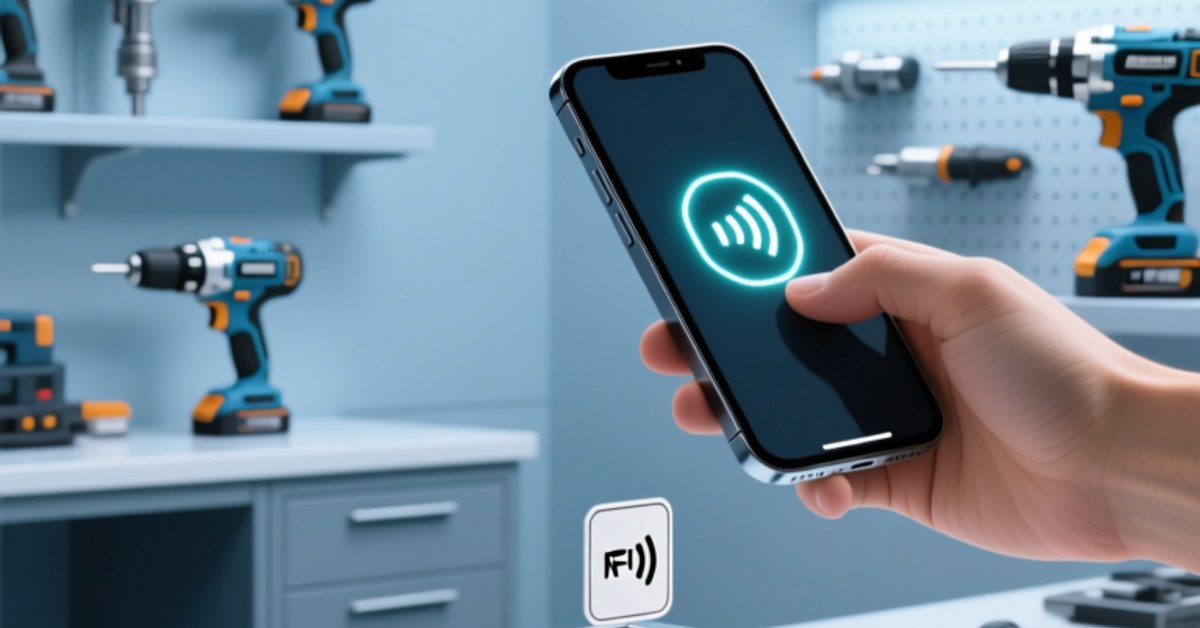
Bring bagsiden af din telefon tæt på NFC-tagget (1-2 cm væk).
Når telefonen registrerer mærket, du vil mærke en let vibration eller høre en notifikationslyd. En meddelelse eller webside vil derefter automatisk poppe op øverst på skærmen; tryk på den for at fortsætte.
Hvorfor virker din scanning ikke? (Fejlfinding)
Hvis du stadig ikke har noget svar efter flere forsøg, tjek venligst følgende:
- Tykt telefoncover: Metal- eller meget tykke stødsikre telefoncovers kan blokere NFC-signaler. Prøv at fjerne telefoncoveret og prøv igen.
- Læsetilladelse er ikke aktiveret: Nogle Android-telefoner kræver “Læs NFC Tag” funktion skal være specifikt aktiveret.
- Forkert holdning: Hold telefonen i kontakt med tagget for 1-2 sekunder; flyt den ikke for hurtigt.
- Beskadigede eller uskrevne mærker: Nogle tags er tomme eller krypterede i industriel kvalitet, som måske ikke kan læses direkte af almindelige mobiltelefoner.
Hvad kan du gøre med NFC-tags efter scanning?
Scanning af tags er kun begyndelsen; dens sande værdi ligger i “smart forbindelse.” Med NFC -tags, du kan opnå:
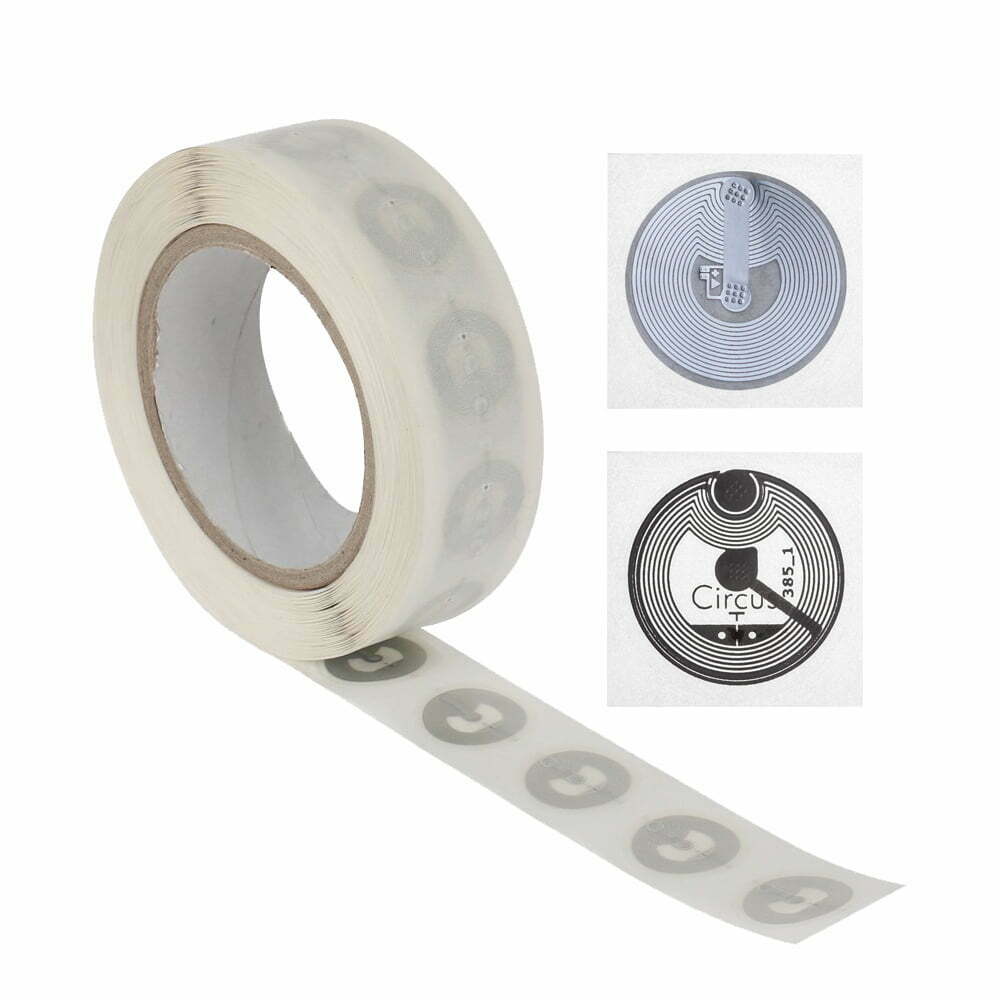
- Smart Home Automation: Sæt et mærke ved din seng; et tryk med din telefon vil automatisk slukke lyset og aktivere “Forstyr ikke” mode. Vi anbefaler at bruge den højsensitive [NTAG213 Entry-Level Sticker] for disse scenarier.
- Forretningsnetværk: Ikke flere papirvisitkort. Du kan skrive dine kontaktoplysninger ind i en [NFC e-visitkort], og kunder kan simpelthen scanne det for automatisk at gemme dit telefonnummer, hjemmeside, og sociale mediekonti til deres kontakter.
- Bekæmpelse af produktforfalskning: Mange avancerede mærker bruger NFC-chips til at verificere produktets ægthed, sikre, at du køber ægte produkter.
Oversigt
Scanning af NFC-tags er en ekstremt enkel, men kraftfuld færdighed. En gang mestret, du kan sige farvel til besværlige QR-koder og komme ind i en mere effektiv verden af smarte tilslutningsmuligheder.
Er du klar til at prøve det selv?
Hvis du gerne vil dykke dybere ned i NFC-teknologi, besøg vores [NFC-chipudvælgelsesside] at vælge et passende indledende NFC-produkt til din virksomhed og begynde at bygge din egen smarte trigger!
For mere information,behage Kontakt os.