Come eseguire la scansione Tag NFC? Una guida completa per iPhone e telefoni Android
Hai mai visto Tag NFC sui cartelli dei tavoli del ristorante, manifesti pubblicitari, o l'imballaggio del prodotto, ma non so come usarli? In realtà, la scansione dei tag NFC è molto più semplice di quanto pensi. Non richiede una configurazione complicata; è semplice come utilizzare i pagamenti contactless.
In questo articolo, ti guideremo nella comprensione di come scansionare i tag NFC e ti insegneremo come utilizzare questa tecnologia per sbloccare funzionalità intelligenti nella tua vita.
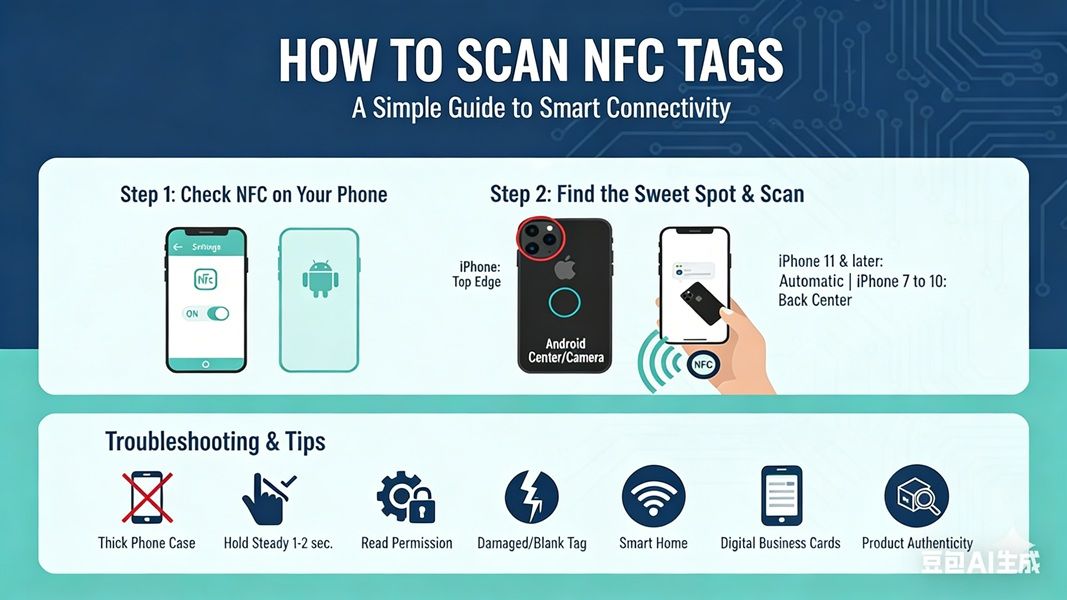
Fare un passo 1: Controlla se il tuo telefono supporta NFC
La maggior parte di fascia medio-alta smartphone sul mercato ora hanno l'NFC integrato (Comunicazione vicino al campo) funzionalità.
- Utenti Android: Vai a “Impostazioni” > “Connettività” O “Più connessioni” e controlla se c'è un interruttore NFC. Assicurati che sia acceso.
- Utenti iPhone: Tutti gli iPhone 7 e i modelli successivi hanno la funzionalità NFC integrata. iPhone 11 e i modelli successivi non necessitano nemmeno di essere accesi manualmente; il sistema riconoscerà e scansionerà automaticamente i tag.
Fare un passo 2: Determina la posizione di scansione per il tuo telefono
Questo è il motivo principale per cui molti utenti “non è possibile eseguire la scansione” tag. I tag NFC sono generalmente posizionati sul retro del telefono, ma la posizione dell'antenna varia a seconda del modello di telefono:
- iPhone: L'antenna si trova solitamente vicino all'area della fotocamera sul bordo superiore del telefono.
- Android: La posizione dell'antenna varia in base al modello, ma di solito si trova al centro del retro del telefono o vicino alla fotocamera.
Fare un passo 3: Avvia la scansione
Sblocca lo schermo del telefono (assicurati che lo schermo sia acceso).
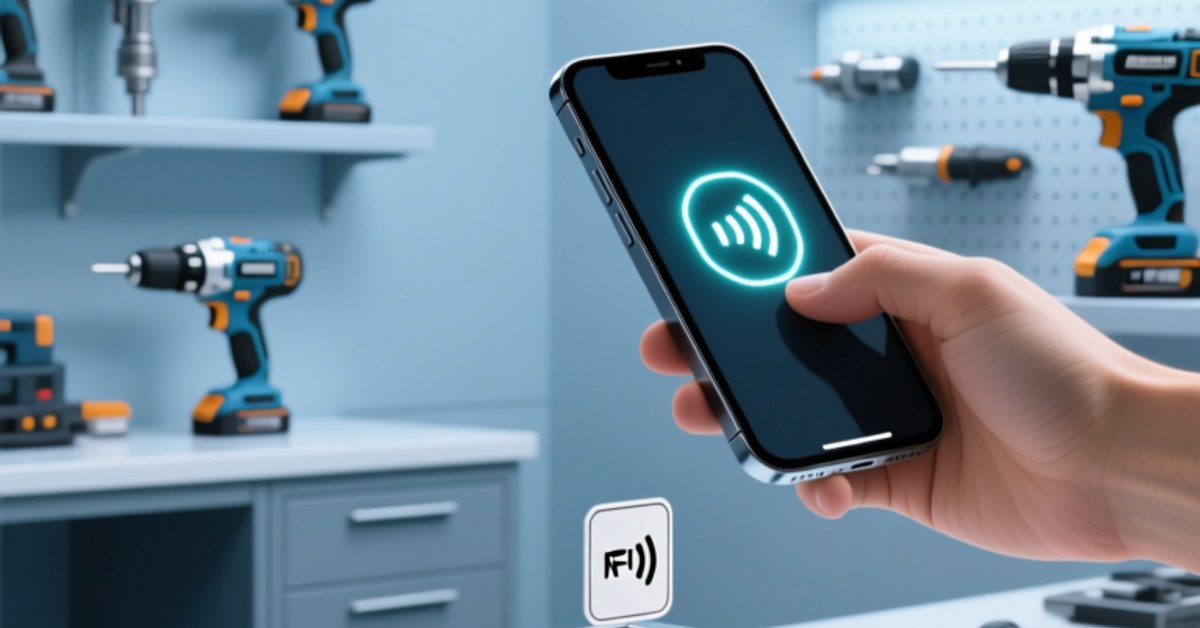
Avvicina il retro del telefono al tag NFC (1-2 cm di distanza).
Quando il telefono rileva il tag, sentirai una leggera vibrazione o sentirai un suono di notifica. Verrà quindi visualizzata automaticamente una notifica o una pagina Web nella parte superiore dello schermo; toccalo per procedere.
Perché la tua scansione non funziona? (Risoluzione dei problemi)
Se non hai ancora risposta dopo più tentativi, si prega di verificare quanto segue:
- Custodia spessa per telefono: Le custodie antiurto in metallo o molto spesse potrebbero bloccare i segnali NFC. Prova a rimuovere la custodia del telefono e riprova.
- Autorizzazione di lettura non abilitata: Alcuni telefoni Android richiedono il “Leggi il tag NFC” funzione da abilitare specificatamente.
- Postura scorretta: Tieni il telefono a contatto con il tag 1-2 Secondi; non spostarlo troppo velocemente.
- Tag danneggiati o non scritti: Alcuni tag sono vuoti o crittografati di livello industriale, che potrebbero non essere direttamente leggibili dai normali telefoni cellulari.
Cosa puoi fare con i tag NFC dopo la scansione?
La scansione dei tag è solo l'inizio; il suo vero valore sta in “connettività intelligente.” Con tag NFC, puoi ottenere:
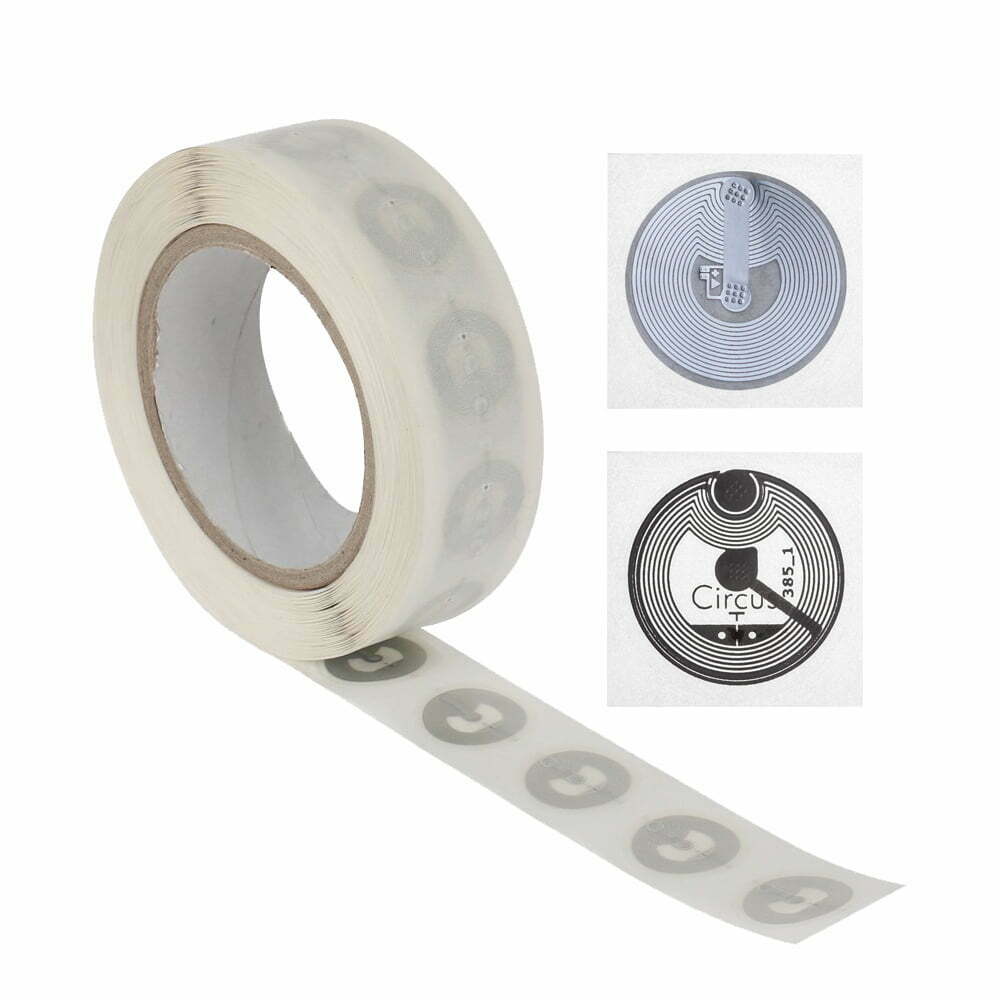
- Automazione domestica intelligente: Metti una targhetta accanto al letto; un tocco con il telefono spegnerà e attiverà automaticamente le luci “Non disturbare” modalità. Si consiglia di utilizzare quello altamente sensibile [NTAG213 Adesivo entry-level] per questi scenari.
- Reti aziendali: Niente più biglietti da visita cartacei. Puoi scrivere le informazioni di contatto in un file [Biglietto da visita elettronico NFC], e i clienti possono semplicemente scansionarlo per salvare automaticamente il tuo numero di telefono, sito web, e account di social media ai loro contatti.
- Verifica anticontraffazione dei prodotti: Molti marchi di fascia alta utilizzano chip NFC per verificare l'autenticità del prodotto, assicurandoti di acquistare prodotti genuini.
Riepilogo
La scansione dei tag NFC è un'abilità estremamente semplice ma potente. Una volta padroneggiato, puoi dire addio agli ingombranti codici QR ed entrare in un mondo più efficiente di connettività intelligente.
Sei pronto a provarlo tu stesso??
Se desideri approfondire la tecnologia NFC, visita il nostro [Pagina di selezione del chip NFC] per scegliere un prodotto NFC introduttivo adatto alla tua attività e iniziare a costruire il tuo trigger intelligente!
Per ulteriori informazioni,Per favore contattaci.